How to Install Smarters Pro: Step-by-Step Guide for Smartphone, Smart TV & PC
Learn how to install Smarters Pro on your smartphone, Smart TV, or PC with our easy guide. Set up IPTV Smarters Pro quickly and start streaming today.
In today’s streaming world, IPTV has become one of the most popular ways to watch live TV, movies, and series online. Among the many IPTV apps available, Smarters Pro stands out because of its smooth performance and simple interface. This guide will show you exactly how to install Smarters Pro on your smartphone, Smart TV, or computer.
What is Smarters Pro?

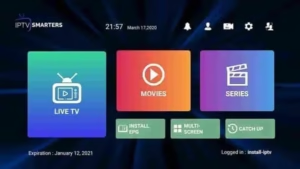
Smarters Pro (also known as IPTV Smarters or Smarters Player Lite) is an IPTV player application. It doesn’t provide channels by itself; instead, it allows you to log in with your IPTV provider’s details and watch their content in an organized way. Think of it as a smart platform that organizes live TV, movies, and shows into categories for easy access.
How to Install Smarters Pro on Different Devices
The installation steps depend on the device you’re using. Here’s a breakdown:
Install Smarters Pro on Smartphones (Android / iOS)
-
Open Google Play Store on Android, or Apple App Store on iOS.
-
Search for Smarters Player Lite or IPTV Smarters Pro.
-
Tap Install and wait for the download to finish.
-
Once installed, open the app from your home screen.
Install Smarters Pro on Smart TVs (Samsung / LG / Android TV)
-
On Samsung Smart TV or LG Smart TV, go to the built-in app store (Samsung Store or LG Content Store).
-
Search for Smarters Player Lite.
-
Click Install and wait for the app to download.
-
If you don’t find the app, use a USB drive to install the APK file (for Android TVs).
Install Smarters Pro on Windows or Mac
-
Visit the official IPTV Smarters website.
-
Download the version for Windows or Mac.
-
Run the installer and follow the setup instructions.
-
Open the program from your desktop once installation is complete.
How to Set Up Smarters Pro After Installation
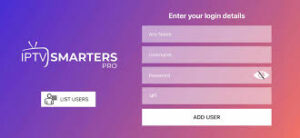
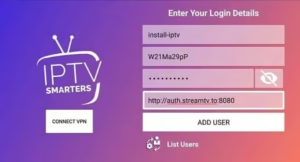
Once you install the app, you’ll need to log in using the details from your IPTV provider. You can log in in three ways:
-
Xtream Codes API (Recommended): Enter Username, Password, and Server URL.
-
M3U URL: Paste the link provided by your IPTV service.
-
Upload M3U File: Upload the file directly into the app.
After entering the details, Smarters Pro will organize your content into Live TV, Movies, Series, and Catch-Up TV sections.
Top Features You’ll Enjoy After You Install Smarters Pro
-
EPG support to see what’s currently airing.
-
Movies and series on demand.
-
Multi-profile support for different users.
-
Works across multiple platforms (Android, iOS, Windows, Mac, Smart TVs).
-
Option to record live TV (on supported devices).
Tips for the Best Smarters Pro Installation Experience
-
Always download from the official store or website for safety.
-
Remember: Smarters Pro doesn’t provide content by default; you need an IPTV subscription.
-
Keep your provider login details safe in case you need to reinstall the app.
-
Use a strong internet connection (20 Mbps or higher) for smooth streaming.
-
On Android TV Boxes, downloading the APK from the official site can sometimes be the easiest option.
Final Thoughts on How to Install Smarters Pro
Learning how to install Smarters Pro is quick and beginner-friendly. Whether you’re using a smartphone, Smart TV, or computer, the process is straightforward. Once you set it up with your IPTV provider’s details, you’ll have access to live TV, movies, and series in a well-organized interface.
If you’ve just subscribed to an IPTV service and want the best way to watch your content, Smarters Pro is one of the most powerful apps to consider. Follow the steps in this guide, and you’ll be streaming in no time.